Replacing a VCSA certificate

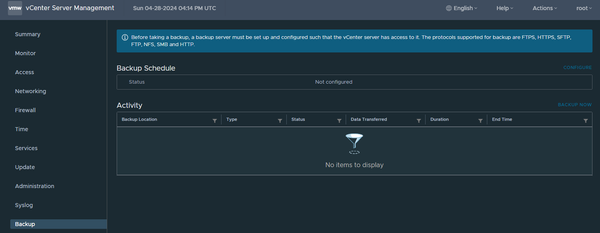
There will come a time where the self-signed certificate created by VCSA (vCenter) will expire, this duration depends on your version of VCSA, but for all modern versions 7.x or 8.x the default is 2 years, previously this was 10 years.
Given that self-signed certificates are not trusted by default, an expiring certificate will usually not impact services, however, there are systems that will remember the certificate or the thumbprint in order to trust the VCSA and operate any API calls. Two that come to mind, and the reason for this guide are, VMware Horizon and Veeam Backup & Replication (the same is likely true of other backup products).
Best practise would be to replace the self-signed with a signed certificate from your own internal CA (wildcards are not supported, please bear this in mind), but for the purpose of this article, I will cover replacing like-for-like with another self-signed, The process is very similar for valid certificates from a certificate authority, but instead of renewing, you import (I might write about using signed CA certificates another time).
The certificate being replaced here is the same as the one you are using to access your VCSA server (so https://vcsa-server/ui, you can confirm this by looking at the certificate details in your browser).
The first thing to do, is login to your vCenter server, at the top of the screen on the left hand side, select the burger menu (the 3 lines), then Administration.

Once in the Administration page, go to Certificate Management, under certificates.
You will be presented with a page of certificates and certificate authorities, how many you see depends on your configuration, but we're only interested in one, _MACHINE_CERT.


You should see the expiration date. Yours, if you're reading this post, may have expired already, but if not it will show it's expiration date - you'll want to replace this before it expires to avoid issues, but it can also be replaced after expiration.
TIP: get notified before certificate expiration by setting up email alerts in vCenter or your chosen monitoring tool.
You can verify the certificate by choosing 'view details', once you are happy this is the one, click 'back to certificate management' at the top.
The next step is to renew the existing cert, this will replace the one in use with a new one, you can make this valid for no more than 2 years, do note that modern browsers may complain that certificate validity is too long as it is now recommended certificates be no longer than 13 months total.
We will continue with the given duration, but please change this to a lesser value if you're happy to change it more frequently, (there may be a time you have no choice, so it could be good practise to do this yearly anyway).

Once we press 'Renew' your certificate will be generated and replaced with the existing HTTPS one, you will have to wait 15-20 minutes while certain vCenter services restart and your session can be logged in to again - if you are concerned, do this during a quieter time.
That's it, your new, 2 year certificate should now be in-place and letting you sign in - you can check the certificates new expiration date, either from the browser certificate details or from the certificate management page as covered above.
Updating Veeam to accept the new certificate
We now need to update Veeam to pickup the new certificate, otherwise backups will fail, a rescan of the VCSA will result in an error about the certificate.
In the Veeam console navigate to the Inventory tab on the bottom left, expand vCenter Servers, find the server you just replaced the certificate on, right click and choose properties, in the menu click next and apply - it should ask you to verify and accept the new certificate, follow the prompts to finish the changes and you're done.
Updating VMware Horizon to accept the new certificate
If you use VMware Horizon view, the certificate will also need to be amended here, otherwise machines will not be able to be deleted or recomposed and will instead fail.
Login to your admin console https://yourconnectionserver.domain.com/admin. You may notice errors on your dashboard, specifically for the vCenter server. Navigate to settings, servers and select your vCenter server, click edit. Now, depending on your HV version, you may get an error or may have to click on a certificate dialogue to accept the new certificate. For the latter accept the new certificate, it should say success at the top. That's it. Within a few minutes machines should start deleting/recomposing as they normally would.
If the above does not work, we need to go deeper and remove the old certificate thumbprint using ADSI edit. At this point it would be wise to ensure you have a valid backup and take a snapshot.
Connect to the connection server by RDP or the VMware console and open ADSI Edit.
Choose connect to, and ensure your settings look like below.

The settings required are not your own domain, they are as specified in the above image, click OK.
Expand: ou=properties then ou=global and go to properties on cn=common, find the attribute 'pae-SslCertThumbprint' click this attribute and click edit, click clear and OK.
Now return back to your admin console, settings, servers, select your vCenter server and you should now be prompted to view/add the certificate, once done, this should say success. As above, within the next few minutes, errors in the dashboard should resolve and VMs should be recomposing.
I hope this helps others with similar issues.